Pair a TV and manage screens
Last updated 2026-10-22
A screen is one paired TV. Pairing takes under a minute, and you manage everything about the TV afterwards from the dashboard.
Pair a TV
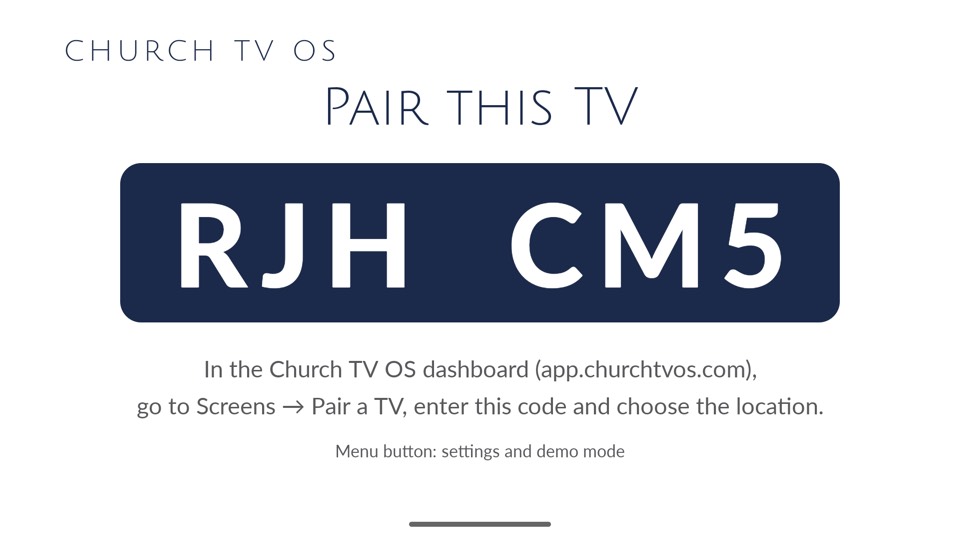
- Open the Church TV OS app on the TV. It shows Pair this TV, a 6-character code and a QR code.
- In the dashboard open Screens. In the Pair a TV box, type the code, choose the Location and optionally add a Name such as "Lobby left".
- Press Pair TV. The TV updates in a few seconds.
Pairing to a room that does not exist yet
If the TV's room is not in the Location list, choose + New room… at the bottom. Enter the room name, choose its Site (or + New site… and give the site a name and time zone), and tick the applications that use the room (Kids, Signage, Slides). The room is created and the TV is paired in one step. If the pairing is refused afterwards (for example your plan's TV limit), the room is kept and selected for you, so just press Pair TV again. You can rename the room or change its tags any time under Sites & Locations. This works the same way when you scan the QR code.
Or scan the QR code
Instead of typing the code, point your phone camera (or the Church TV OS app) at the QR code on the TV. It opens the dashboard with the code already filled in. Sign in if asked, choose the Location, optionally add a Name, and press Pair TV. You land on the Screens page when it is done. QR pairing needs TV app version 1.7.0 or newer; on an older TV, type the code as above.
Only owners and admins can pair and edit screens. Everyone else can look at the list.
Your list of screens
Each screen shows a green dot when it is online (it has checked in during the last minute and a half), when it was last seen, its location, orientation, default module, group, and the app version and device model. The top of the page also shows how many TVs your plan allows.
Your plan limits how many TVs you can pair. If pairing is refused, you have reached the limit. See Billing and plans.
Change a screen's settings
Press Edit & schedule on a screen. Change what you need, then press Save changes.
- Name and location
- The location decides which Kids and Slides schedules this TV follows, since Kids playlists and Slides decks are scheduled per location.
- Orientation
- Landscape is a normal TV. Portrait and Portrait (flipped) are for TVs mounted on their side. Pick the direction that matches which way you turned it. See Portrait screens.
- Default module
- What the TV runs when no module schedule applies: Kids, Signage, Slides (when it is on for your church), or Off (black screen).
- Group
- Put the screen in a group so it shares a schedule with others.
- Signage default playlist
- The playlist Signage plays when no slot is active. Leave it empty to show a black screen at those times.
Module schedule (mixed TVs)
At the bottom of a screen's panel is the Module schedule. A rule such as "Signage Monday to Saturday, Kids on Sunday 8:00 to 13:00" (or Slides, for a deck in the sanctuary) lets one TV change jobs through the week. Rules repeat weekly. When rules overlap, the higher priority wins, then the newest. Only owners and admins can edit module schedules. You can also add them from the Calendar.
Groups
On the Groups tab, add a group such as "Lobby screens", then choose it on each screen. A group has its own module schedule, and a Signage slot can target a whole group. Deleting a group keeps its screens but deletes the group's schedules and slots.
Remove (unpair) a screen
Remove / unpair makes the TV forget your church and show a fresh pairing code. Use it when you move a TV to another church or want to start it over. This is also the right fix if a TV was paired to the wrong location by mistake: unpair it, then pair it again.
On the TV: the Menu button
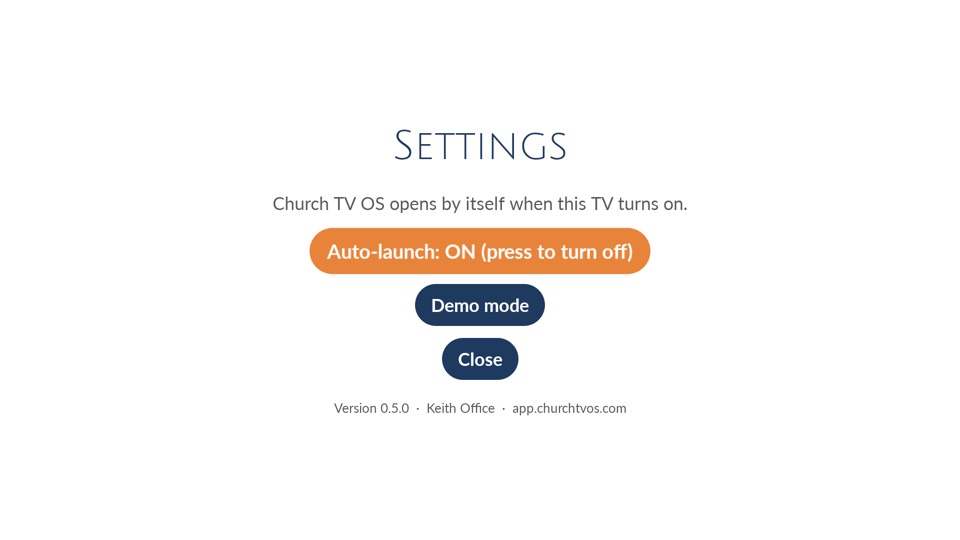
Press Menu on a Fire TV remote (the three-line button) to open Settings. There you can:
- Turn Auto-launch on or off. When on, Church TV OS opens by itself when the TV turns on.
- Start Demo mode, with sample content that needs no church account.
- See the app version and the screen's name.
- Close Settings.
Press Menu again to close it. On the pairing screen the same Menu button works too.
Google TV remotes have no Menu button. Holding OK for about a second will open Settings instead. This works on app version 1.2.0 and newer, so it may not work on an older version.