Install the app on a TV
Last updated 2026-10-20
The Church TV OS app runs on Fire TV and Google TV devices. Check your device first, then pick the install route that suits you.
Which devices work
| Works | Does not work |
|---|---|
|
|
Before you buy or install, check the device's product page. If it says Vega OS, choose a different device. A Fire TV Stick 4K Max, a Fire TV Cube or a Google TV streamer all work well. A wired network connection is a nice extra for TVs that run all day, but Wi-Fi is fine.
Option 1: the app store (easiest)
- Amazon Appstore for Fire TV: link coming soon.
- Google Play for Google TV and Android TV: link coming soon.
Once a listing is live, search for "Church TV OS" on the TV, choose Get or Install, then open it. Store installs also update automatically.
Option 2: install it directly (sideload) on a Fire TV
While the store listings are being approved, the app file is available on request: email support@churchtvos.com and we will send you a download link. Then use the free Downloader app from the Amazon Appstore to install it.
- On the Fire TV, install Downloader (search for it).
- Go to Settings, My Fire TV, Developer options, Install unknown apps and turn on Downloader. If you don't see Developer options, open About and press OK on the device name seven times.
- Open Downloader and type the download link we sent you.
- Download the file, press Install, then Open.
- The app shows Pair this TV and a code. Carry on with Pair a TV and manage screens.
Pick one source per TV. Amazon signs store apps with its own key, so a TV installed directly cannot update to the store version. To switch a TV to the store version, uninstall the directly installed app first, then install from the store. You will need to pair the TV again.
Option 3: install with adb (advanced)
For people comfortable with a command line. You need the APK file and the TV on the same network as your computer.
- On the TV, turn on ADB debugging in Developer options and note the TV's IP address (Settings, My Fire TV, About, Network).
- On your computer run
adb connect TV-IP-ADDRESS:5555. Accept the prompt on the TV if one appears. - Run
adb install -r church-tv-os.apk(use the file name you were sent). - Launch the app from the TV's home screen, or with
adb shell monkey -p com.churchtvos.tv 1.
Google TV and Android TV
Use Google Play once the listing is live. Until then, ask us for the app file (see Option 2) and install it with a file-transfer app or with adb as above. On Google TV, turn on Developer options first (Settings, System, About, press the Android TV OS build seven times).
After installing
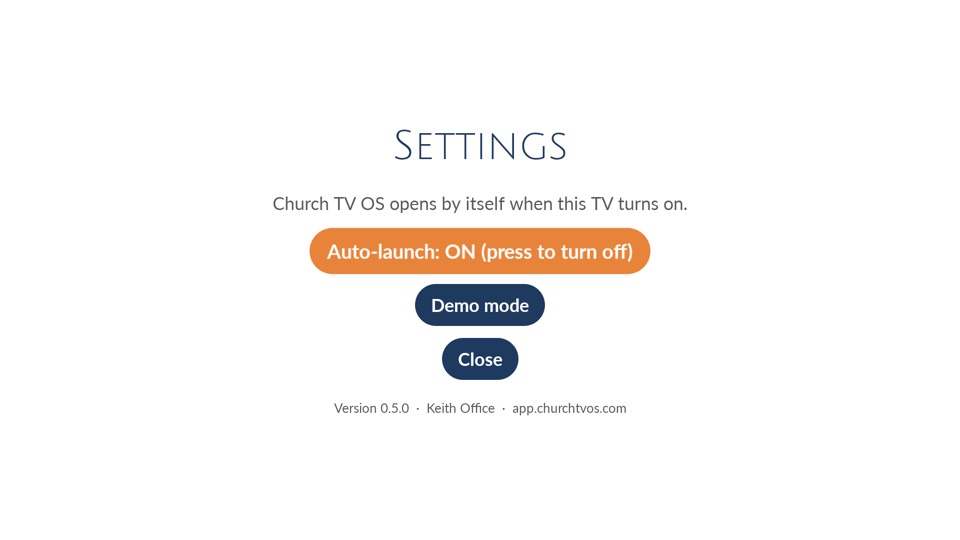
- The app can open by itself when the TV turns on. This is a setting you can turn on or off under Menu, Settings, "Auto-launch".
- If your TV used the old Forward Kids TV app, remove it from that TV. Two auto-launching apps will compete for the screen.
- Press the Menu button on the remote to find Demo mode, which shows sample content without a church account. It is a good way to check the TV, the sound and the picture.