Quick start
Last updated 2026-10-21
About ten minutes from a new account to a screen showing your first content. You will need a TV with the app installed (or at least a plan to install it) and a video or image to play.
1. Create your account and your church
- Go to app.churchtvos.com, choose First time? Create an account, enter your email and a password (at least 8 characters).
- Check your email for a confirmation link, click it, then come back and sign in.
- On Create your church, enter your church name. The short name (letters, numbers and dashes) is filled in for you. Then enter the name of your first site, which is your campus or building. It starts as "Main Campus".
- Press Create church. You are now the church's owner, and the Get started checklist opens.
If someone already invited you to a church, don't create a new one. Sign out and sign in again with the email address you were invited with. See People and roles.
Kids, Signage and Slides are switched on per church. If a page says an application "isn't enabled for your church", ask the person who set you up (or support@churchtvos.com) to enable it. See Billing and plans.
2. Add sites and locations
Open Sites & Locations. A site is a campus. A location is a room or area in it, like "Preschool" or "Main lobby".
- Add more sites if you have more than one campus. Check each site's time zone; schedules follow it.
- Under the Kids, Signage or Slides heading of a site, type a location name and press Add.
- The "Used by" chips are the tags. A Kids room is tagged Kids; a lobby is tagged Signage; a room with a presentation screen is tagged Slides. A location can carry several tags.
3. Put the app on a TV and pair it
- Install the app. Here is how, including which devices work.
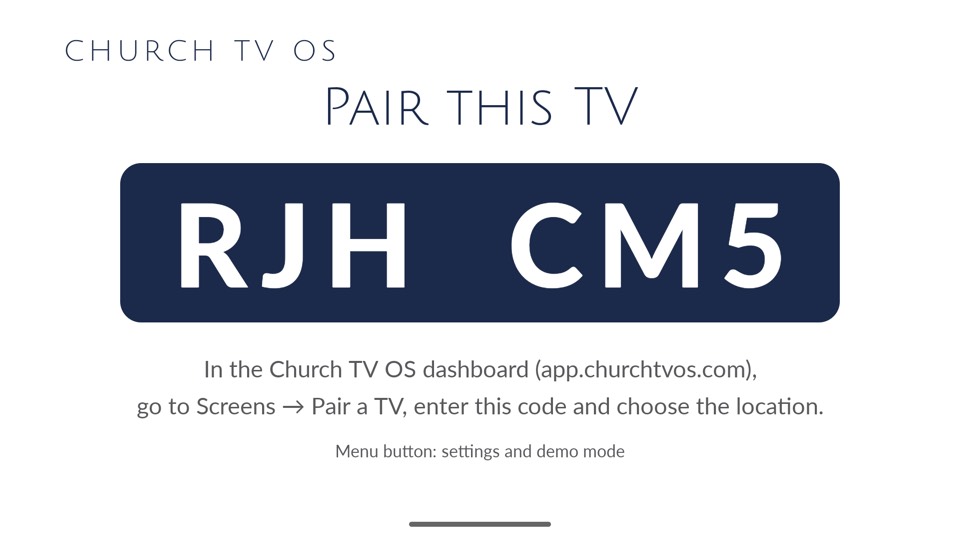
- Open it. The TV shows Pair this TV and a 6-character code.
- In the dashboard go to Screens, Pair a TV. Type the code, choose the location and, if you like, give the TV a name such as "Lobby left". Press Pair TV.
- Within a few seconds the TV leaves the code screen. It now belongs to your church.
4. Add your first content
- Upload media. Open Kids, Media, Signage, Media or Slides, Media and drop in a video or an image.
- Build a playlist. Open Playlists, press New playlist, name it and add items. For Signage, try a simple text sign. For Kids, try a countdown followed by a video. For Slides, open Slides, Decks, press New deck and add a text slide (see Slides module).
- Press Save playlist.
5. Schedule it
Open the Calendar. Choose your screen at the top, then drag across an empty time to add something. Pick the playlist (or deck), check the screens and days, and press the button to save. The details are in The Calendar.
Signage plays by itself whenever a slot is active. Kids waits for someone in the room to press OK or Play on the remote, so a leader is always in control. Slides is the same: a person steps through the deck with the remote.
6. Invite your team
Under People, enter a volunteer's email and choose a role. See People and roles.
Done?
If a TV shows a black screen or the wrong thing, start with the Troubleshooting guide.