Kids module
Last updated 2026-10-20
The Kids module plays your curriculum in each kids room. Leaders are in control: the TV shows what is coming up and waits for someone to press Play.
Playlists
Open Kids, Playlists and press New playlist. Give it a name such as "Elementary - Week 3", choose who it is available to (all sites or one), then add items in order. The arrows move an item up or down, and the cross removes it.
What you can add
- Video
- Pick from your Kids library. It plays to the end, then the next item is ready.
- Slide (image)
- Pick an image. By default it stays up until the leader moves on. Type a number in "Auto-advance after (sec)" to make it move on by itself.
- Countdown
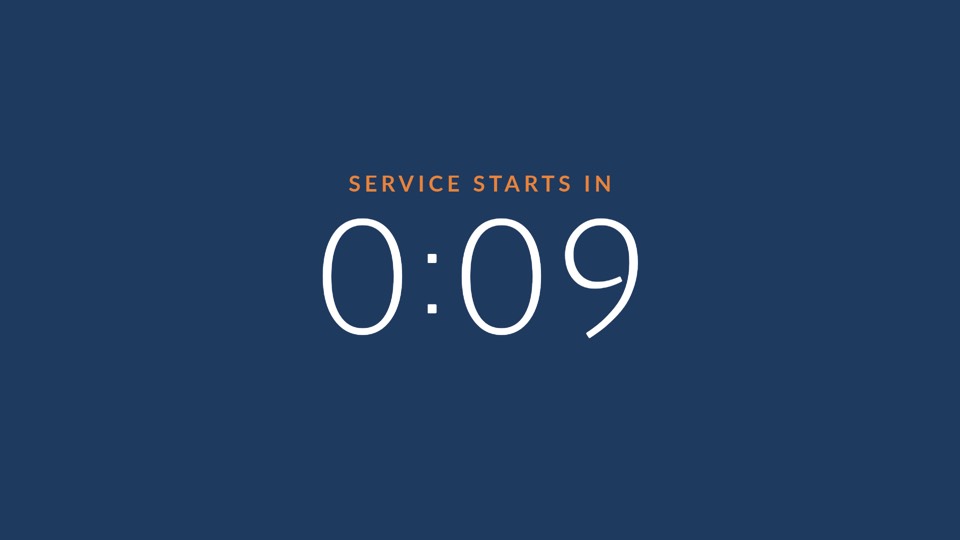
- A big timer. Set the heading (for example "Service starts in") and the minutes and seconds. When it hits zero it moves on.
- Lyrics
- Choose From song library to pick a song you added on the Songs page (it follows the song's play order and lines per slide), or choose Typed lyrics and type or paste a title and the words, with a blank line between slides. Tick Show song title first to show the song name as its own slide that stays up until the leader presses Next (the styled title needs app 1.3.0 or newer; older TVs show a plain first slide).
- YouTube
- Choose a video, or paste any YouTube link (and optionally a start time like 12:30). If you add your YouTube channel ID in Settings, you can pick from your recent live streams, and use Live now, which plays whatever your channel is streaming when the item comes up.
- Live stream
- A live video link ending in
.m3u8(HLS). Choose how long to show it, or leave it blank to stay until the leader moves on. Use Test link to check it. Pick "Skip it" or "Show waiting for feed" for when the stream is down. Sound is off unless you turn it on. Needs app 1.1.0 or newer. - NDI source (experimental)
- Only appears if the Church TV OS team has switched it on for your church. It shows a live NDI picture from a camera or computer on the same network as the TV, and plays only on TVs running a special test build of the TV app (the normal app skips it). Type the source name exactly as NDI shows it, for example
STUDIO-PC (Camera 1). NDI finds sources by broadcasting, which does not cross VLANs, so if the camera is on a different network type its address too. NDI|HX is recommended for TVs on Wi-Fi. Choose what happens if the source is missing: skip it, or show a message.
YouTube items do not rotate on portrait screens. See Portrait screens.
Save with Save playlist. Duplicate on the list makes a copy you can tweak for next week.
Importing a PDF, PowerPoint or pictures
On the Playlists page press Import PDF / PowerPoint to make a new playlist, or use Import at the bottom of a playlist to add to it. Choose a PDF, a PowerPoint (.pptx) or several PNG/JPG files, tick and reorder the pages, then choose where they go (the end, after a position, or a new playlist). Each page becomes a Slide item, uploaded into a folder named after the file in your Kids library.
- PDF: every page is drawn in your browser at up to 1920 pixels. It keeps the exact look, but not animations or video.
- PowerPoint: Kids playlists have no text slide, so a slide's title and words are drawn onto a picture in your church colour, and a slide that is only a picture keeps its picture. Speaker notes are not kept. Videos inside the file (MP4, under 50 MB) can be imported as Video items.
- For the exact look of a PowerPoint, in PowerPoint choose File > Export > PDF (or PNG images) and import that.
Choose how long each page shows (the default is 10 seconds, or wait for the leader). Up to 150 pages per import and 150 MB per file; each uploaded picture or video must be under 50 MB. If one page fails the rest still import.
What leaders see and do on the TV
On a Kids TV the home screen shows the room name and the playlist that is scheduled, with its items listed and a Play button.
- OK or Play starts the playlist. During a video, OK or Play/Pause pauses and resumes it.
- Right (or Next) moves to the next item. Left (or Previous) goes back.
- Back stops and returns to the home screen.
Scheduling a Kids playlist
Kids playlists are scheduled per location: the TV in that location plays what is scheduled for it. You can schedule from the Calendar (best for repeats) or from Kids, Schedule.
- On Kids, Schedule, choose a playlist and a start date and time. Add an end time if you want one.
- Tick the locations (only locations tagged Kids appear), then press Add to schedule.
A playlist stays on a location's TV until its end time, or until the next scheduled playlist starts. TVs download everything scheduled in the next 14 days ahead of time, so the room works even if the internet is down on Sunday morning. The list below shows what is Showing now, Upcoming or Replaced.
Repeat every week, with a rotation
If your curriculum runs week by week, make a repeating schedule instead of scheduling each Sunday by hand.
- Open the Calendar, drag across a Sunday time and choose Kids playlist.
- Under Repeat, choose Every week. The first playlist is "Week 1".
- Add more playlists for Week 2, Week 3 and so on, in order. Choose whether the rotation stops at the end or repeats from the start.
- Save with Create repeating schedule.
Each time it comes round, the TV gets the next playlist in the list. On the calendar the blocks are labelled like "Week 3: Noah". Manage them under Repeating schedules.
Skip or change one date
Click one occurrence on the calendar. You can Change this date to a different playlist, or Skip this date (a holiday, a special service). Skipping makes the rotation wait, so the skipped week's playlist moves to the next date. A changed date still uses up its week. Back to the rotation undoes it.
A one-time schedule on the same time replaces a repeating one, so you can always override a single Sunday without touching the series.