Branding and dark mode
Last updated 2026-10-21
Your logo and colours show on the TVs and in your dashboard. Set them up once under Settings.
Set your look
- Open Settings (owners and admins). You can change the church name at the top.
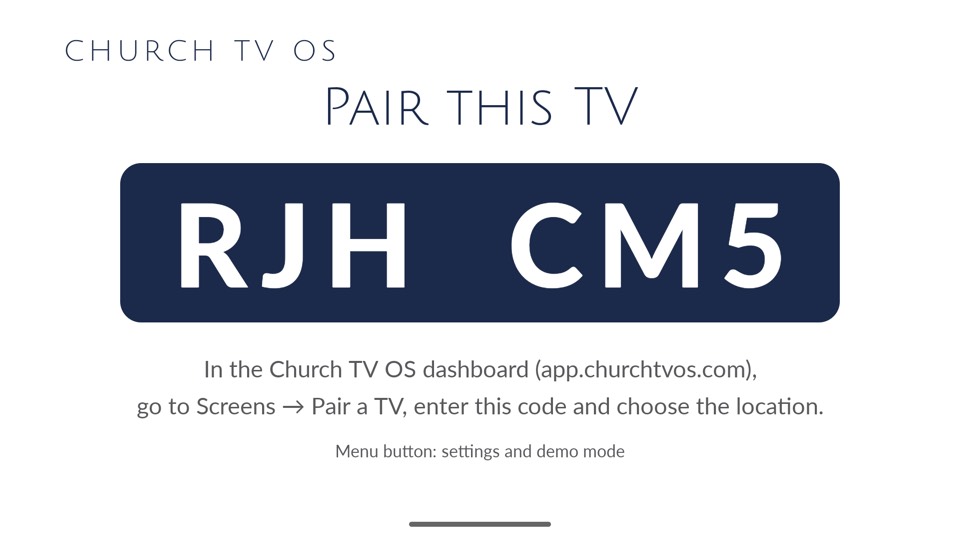
- Under Branding, upload a Logo. It shows on light backgrounds: the pairing and home screens.
- Optionally upload a Logo for dark backgrounds. It is used on the full-screen splash and wherever the background is dark. If you skip it, the normal logo is used. A white or light version of your logo works best here.
- Pick a Primary and an Accent colour. Reset colours goes back to the defaults.
- Press Save settings at the bottom of the page.
Live previews of a splash, pairing screen and countdown update as you go. If your primary colour is very light, a warning tells you that the white text on the TV may be hard to read.
A PNG with a transparent background looks best as a logo.
A different look for Kids, Signage or Slides
At the top of Branding choose Church (default), Kids, Signage or Slides (a tab for each module your church has). Whatever you leave alone in a module follows the church's look. You can give a module its own logo, or tick "Use different colours" to give it its own colours. Use Use church logo to go back.
Full-screen logo splash
Tick Show the logo full screen when the TV starts or switches module and choose how many seconds it stays (2 to 30, default 5). Each module, including Slides, can have its own splash settings. Slide themes (fonts, text colours, backgrounds) are separate: see Slides module.
Light, Dark or System
The menu in the dashboard header switches the dashboard between Light, Dark and System (follows your device). It is remembered for each browser. Your church colours are lightened automatically in dark mode so buttons stay readable, and the dark logo is used in the header if you uploaded one.
This setting only changes the dashboard on your screen. It does not change what the TVs show.